
Quick capture
Press ⌥⌘K in any app and a small glass panel appears. Type, paste or drop something into it, press Return, and it is saved. If a browser is in front of you, the panel already knows which page you are looking at.
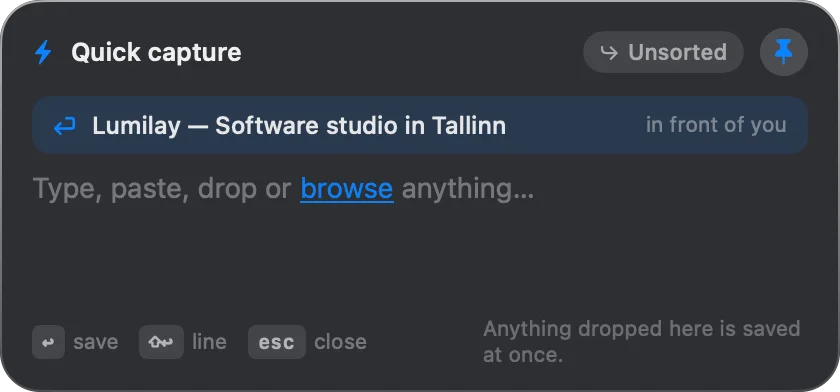
The panel
Section titled “The panel”- The room pill in the header shows where the capture will go, Unsorted until you set otherwise. See Where captures go, below.
- The pin keeps the panel over other apps until you put it away; unpinned, it closes when you click elsewhere. The state is remembered.
- The box says Type, paste, drop or browse anything… browse is a link that opens a file picker, starting in Downloads or in the folder you chose.
- The keys along the bottom: ↩ save, ⇧↩ line, esc close. Anything dropped here is saved at once.
The panel opens in the upper third of the screen the pointer is on, on every Space, and can be dragged by its background. Pressing the hotkey again closes it.
What it saves
Section titled “What it saves”- What you typed, on Return: a link if it is an address, one link per line if every line is one, otherwise a note. ⇧Return starts a new line.
- What you pasted: files or a link on the clipboard are saved the moment you press ⌘V. Plain text is pasted into the box for you to send.
- What you dropped: saved at once.
- The page in front of you: see below.
After a save the panel shows Saved with a tick and closes, unless Stay open after saving is on.
The page in front of you
Section titled “The page in front of you”When the frontmost app is a browser, the panel asks it which page it is showing and offers a row with the page’s title and the words in front of you. Press Return with the box empty and that page is saved. Type something instead and your text is what is saved.
The first time, macOS asks whether Copilka may control your browser, with Copilka’s explanation: Copilka asks the browser in front of you which page it is showing, so the capture hotkey can save it without you copying the address first. It is asked only when you press the hotkey, and nothing else is read. If you decline, the panel says macOS will not let this build read your browser — paste the link instead. You can change the decision in System Settings → Privacy & Security → Automation, or turn the feature off with Offer the page you are looking at.
Any app that opens web addresses and can be asked counts as a browser: Safari, Chrome, Arc and the rest.
Where captures go
Section titled “Where captures go”Settings → Quick Capture → Save captures into: Default room (which follows Settings → General, and is Unsorted until you change it) or any room. Captures made while the app is closed land in the same place.
With Copilka closed
Section titled “With Copilka closed”The hotkey is answered by a small helper that starts at login and keeps running, so it works with Copilka quit. With the app open, a capture is handed to it and gets the usual toast and reading; with it closed, the helper writes straight into the library, and the app reads the new item the next time it opens. The helper does not check your sign-in, so a capture works even while the app is signed out.
Settings → Quick Capture → Capture works in the background switches the helper on and off and shows its state: Running. The hotkey answers even while Copilka is closed., Registered; starting., or Off. The hotkey does not answer. If it says starting for long, toggle it off and on.
The hotkey
Section titled “The hotkey”Settings → Quick Capture → Global hotkey records a new one: click it, press the keys, or Esc to keep the old. The key needs ⌘, ⌥ or ⌃. The hotkey needs no Accessibility permission.
Settings, in full
Section titled “Settings, in full”- Global hotkey: ⌥⌘K by default.
- Capture works in the background: on.
- Save captures into: the default room.
- Browse starts in: Downloads, or a folder of your choice.
- Offer the page you are looking at: on.
- Stay open after saving: off.
- Keep the panel on top: on.
If a capture ever goes wrong, the helper writes what happened to capture.log in the library folder.