
The details panel
Click a card and the details open on the right, in a panel 304 points wide, or as a window over the board if you prefer: the … menu in the top bar, or Settings → Appearance → Details open as. ⌥⌘I hides and shows the panel; the × at the top closes the details and deselects.
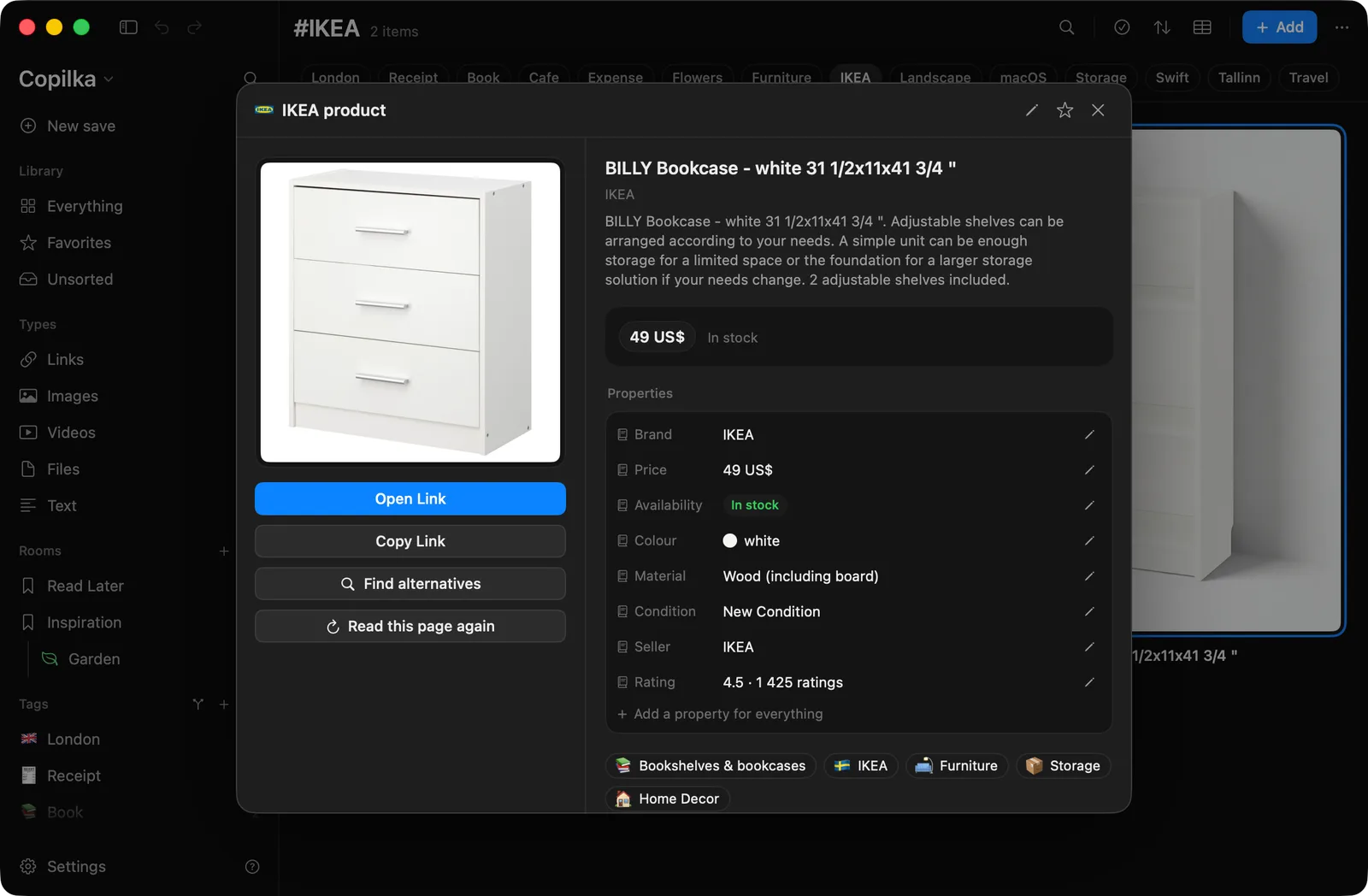
The header
Section titled “The header”The site’s icon or the kind’s glyph, and what the thing is in a few words: YouTube video, IKEA product, Hugging Face model, Note, PDF, Keynote deck, Folder. Then the Edit pencil, which becomes a tick for Done editing, the favourite star, and Close details.
Top to bottom
Section titled “Top to bottom”- The picture. A video plays here. Music is the record, a receipt the slip, a flight the pass. Hovering a picture, a file or a chosen cover shows Turn left, Turn right and Look at it big. Dropping a picture here makes it the cover: the overlay says Use as cover.
- The headline. The title, which you can copy from its tooltip; the site or, for a file, its folder; and the reader’s summary, copyable too. A file that has moved shows a warning here: This file is no longer at its saved location.
- The actions.
- Sign in to read or Read now, when the page needs your login. See Read as you.
- The main button: Open Link, or Open in Maps for a place, Open Image, Play in Player, Open File, or Copy Text for a note. Disabled while a file is missing.
- Reveal, for files, and Copy Link or Copy Path.
- Find alternatives, for a priced product. See Alternatives.
- Read this page again, or Look at this image again, Read this file again, Read this receipt again. See How a link reads itself.
- A map, for places.
- The reader’s offer for a picture that might be a receipt or a ticket, and the drawn ticket, event, receipt or flight where there is one. See Pictures and files.
- The price, with availability, a small chart once it has moved, and Down from £45, saved 12 September. See Prices and changes.
- Properties. See Properties.
- Recipe sections, for a recipe: the times and servings, an ingredients checklist, and the method as steps you can tick off while you cook. The ticks reset when you close the panel.
- Note: your own note on the item, with a copy button.
- Tags, as chips.
- The footer: the room as a capsule (right-click it to move the item), Added 9 September · edited 12 September · PDF · 2.4 MB, and the address or path, which opens on click and copies from the button that appears on hover.
A note gets a simpler panel: its text in large type, its tags, Copy Text and the footer.
Editing
Section titled “Editing”Press the pencil and an Edit section appears: Title, Room, Tags (comma-separated), Cover, and Note, or Text for a note. Each field is saved when you leave it. The expand button fills the panel with the text field for longer writing; its height is remembered. At the bottom, a full-width Delete.
Typing a title marks it as yours: the reader will not rename the item after that.
Covers
Section titled “Covers”The Cover well in edit mode takes Choose… (a file picker whose prompt is Use as Cover), Paste when the clipboard holds a picture, and Reset, which puts the page’s own picture or the file’s own preview back. You can also drop a picture on the well or on the picture at the top of the panel, or use Choose Cover… on the card’s menu. A picture file is copied into Copilka’s store; a picture from the web is kept as its address. Covers stop at 25 MB.
The toasts are Cover changed, Cover reset, or That cover was not used with the reason.
Looking at pictures
Section titled “Looking at pictures”Look at it big opens the picture viewer over a black backdrop, with Turn left, Turn right, Smaller, Bigger or Fit to the window, Open in the picture app and Close. Pinch to zoom up to eight times, double-click for double size, drag to pan. Keys: 0 fits, + and - zoom, [ and ] turn, esc closes. Turning is remembered on the item; the file itself is never rewritten.
Previews
Section titled “Previews”Images and PDFs are drawn by Copilka itself. Other files show the preview macOS makes for them, with the Finder icon as a fallback, and folders always their icon. Settings → Reading → Quick Look previews turns the macOS previews off, in which case every document shows its icon.
Opening
Section titled “Opening”Open opens a link in your default browser, a file in the app macOS would open it with, and copies a note. If a file is gone the toast says That file is no longer where it was saved, and Reveal on something not on disk says … is not stored on disk.