
Connect Claude
Copilka has a remote MCP server. Add it to Claude, or to anything else that speaks MCP, and the assistant can search your library, read what you saved, save new things into the right room, tag them, and, if you allow it, remove things. It sees the copy of your library on Copilka’s service, so sync has to be on.
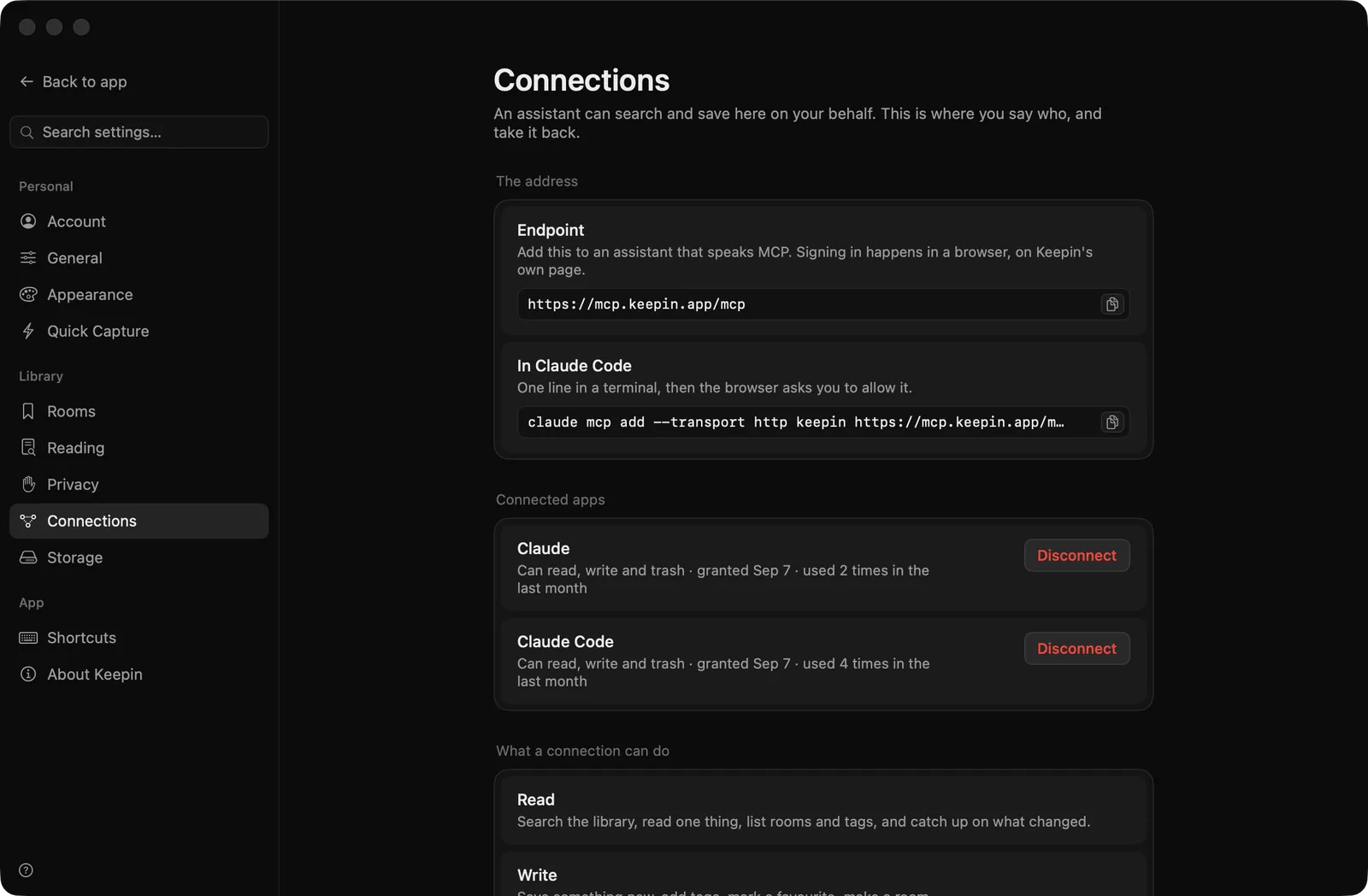
The address
Section titled “The address”https://mcp.copilka.app/mcpIt is also on Settings → Connections, with a copy button: Add this to an assistant that speaks MCP. Signing in happens in a browser, on Copilka’s own page.
Claude on the web and in the desktop app
Section titled “Claude on the web and in the desktop app”- In Claude, open Settings → Connectors and choose to add a custom connector.
- Paste the address above and continue. Claude opens Copilka’s connect page in your browser.
- Follow the connect page, below.
Claude cannot change a connector’s address once it is added, which is why Copilka’s will never change. Custom connectors are available on every Claude plan.
Claude Code
Section titled “Claude Code”One line in a terminal, also shown on the Connections page:
claude mcp add --transport http copilka https://mcp.copilka.app/mcpThen, in Claude Code, /mcp and choose Copilka to sign in; the browser opens on the connect page.
The connect page
Section titled “The connect page”Copilka’s own page, at mcp.copilka.app, titled Connect to your Copilka library.
- It shows where what you approve will be sent, in large type:
https://claude.ai, orhttp://127.0.0.1for a tool on your Mac. It also shows the name the client gave itself, and says that is its own claim, not something Copilka checked. For anything other than Claude or your own Mac, a warning reads Not verified by Lumilay. Only continue if you started this yourself, just now. - Type Your Copilka address, the email of your account.
- Under What may it do?, tick what you grant:
- Read your saved pages, rooms and tags. Always on.
- Save and tag: additive only; this cannot overwrite or lose anything.
- Move to trash. Read Permissions and safety before ticking this one.
- Send me a code. The page says Check your email, and the six-digit code arrives from Copilka, the same one used to sign in to the app. Type it and press Connect https://claude.ai.
- The browser returns you to the assistant, which is now connected.
A code works for fifteen minutes. If it did not, the page says That code did not work. It may have expired. Start again from the assistant.
Sign-in on the connect page is by email code only; Google and GitHub are not offered there. The address must be the one your account uses.
What you see afterwards
Section titled “What you see afterwards”Settings → Connections → Connected apps lists each connection with what it may do and when: Claude · Can read, write and trash · granted 7 Sep · used 12 times in the last month. A red Disconnect cuts it off at once, without asking. Changing what a connection may do means disconnecting and connecting again.
A connection is granted for a year, after which the assistant asks you to connect again. What it did is recorded against it, and the record survives the disconnection.
One side effect to know about: connecting signs in a device on your account, so a Mac named a connection appears under Settings → Account → Other devices. It counts as one of your two Macs. You can remove it there; the assistant stays connected.
What to ask
Section titled “What to ask”See Examples for what works well, and the Tools reference for exactly what each tool takes and returns.