
Properties
Every item carries properties: named facts with a type. Some come with the reading, free of charge; some you define for a room, and the reader can fill those in too. Properties show in the details panel, can appear on the tile, and can be searched, sorted and grouped by.
The ones the reader brings
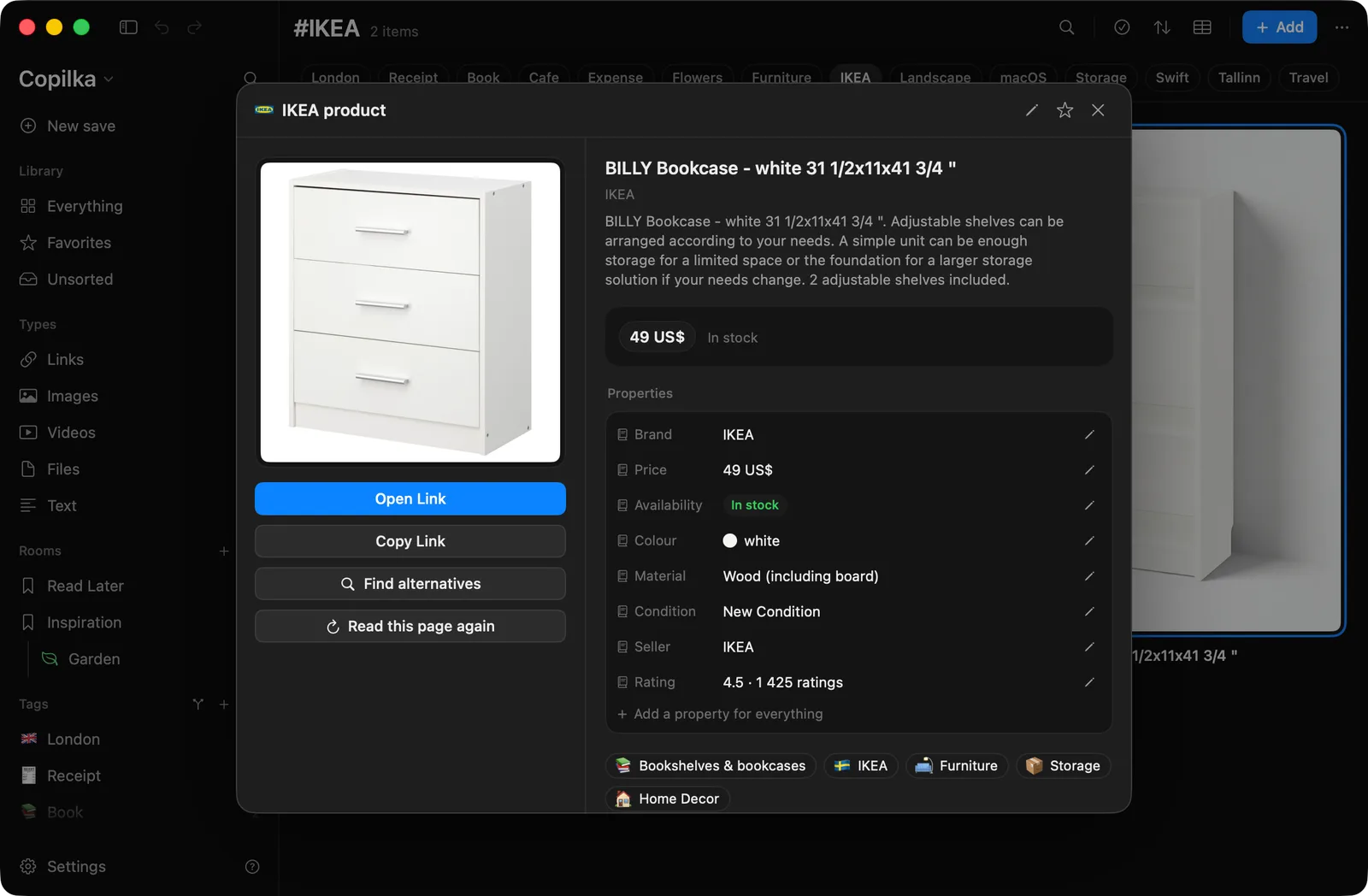
Section titled “The ones the reader brings”A read link has properties from the start, according to its kind:
| Kind | Built-in properties |
|---|---|
| Product | Brand, Price, Availability, Colour, Material |
| Book | Author, Publisher, Pages |
| Article | Publication, Author, Published |
| Event | Starts, Venue |
| Recipe | Total time, Serves |
| Place | Address, Rating |
| Job | Company, Where, Type, Salary, Posted, Closes |
Everything else the reader learned appears as a text property too: a ticket’s From, To, When, Coach, Row and Seat; a receipt’s Subtotal, Tax and what was paid with; a person’s Handle, where they work and their network.
You can edit any of these. Your value replaces the page’s for good: when a later reading disagrees, the panel shows The page now says … with a Use it button, and does nothing until you press it.
Your own properties
Section titled “Your own properties”A property of your own belongs to a room and applies to everything in it. Add one from Settings → Rooms, with Add property for one of the presets or New property for your own, or straight from the details panel with Add a property for everything.
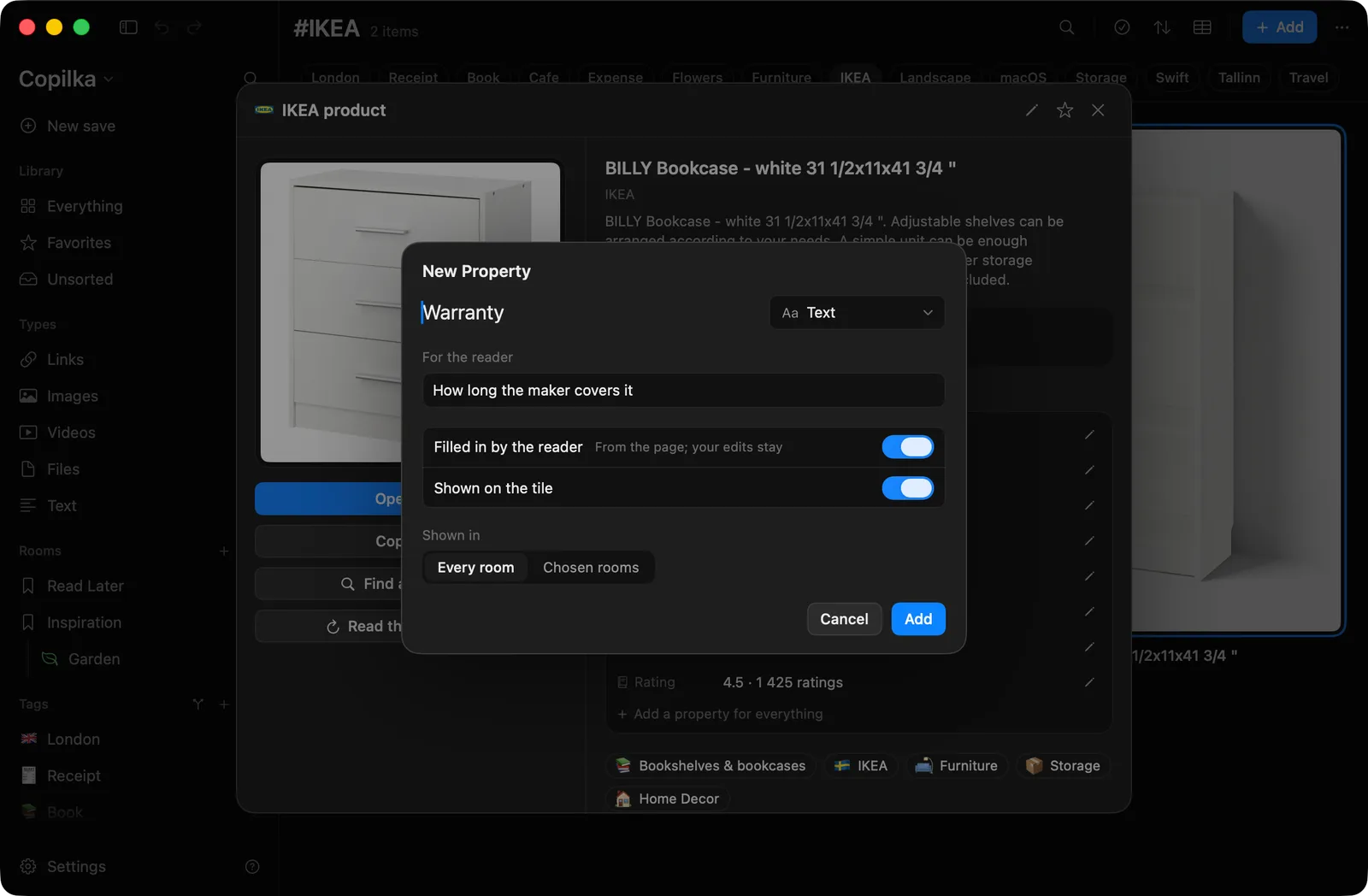
The property sheet, titled New Property or Edit Property:
- A name and a type: Text, Number, Money, Date, Checkbox, Link, Rating, Colour, Choice, or Several choices.
- For the reader: What this property means, in one sentence. This is what the reader is told when it fills the property in.
- Status: Ordered, with a dated history. A status is a choice whose stages are ordered, and every change is dated.
- Closes itself: When the page is gone or past its date. See rules, below.
- Filled in by the reader: From the page; your edits stay.
- Shown on the tile.
- Applies to sub-rooms.
For a choice, each option can be marked as one a page may set, or one that is set by you. The reader only ever picks among the former.
The presets are Jobs, Reading, Shopping, Trips and Recipes. Jobs, for instance, includes a Tech stack that the reader fills in from a posting.
The reader filling them in
Section titled “The reader filling them in”With Filled in by the reader on, the reader answers the property from what it already kept of each page: the title, the summary, the facts and the excerpt. Nothing is fetched again. It happens:
- when you create the property, if you say so;
- after every reading of a link in that room, including the periodic price checks;
- on request: Fill in… on the room in Settings, choosing Empty values or Everything again, or Fill in empty values and Fill in again on the property itself in the details panel.
The fill sheet, Fill in Warranty, previews on three items first (Try on 3), shows What it would put or The page does not say, then fills the rest with Fill in 12, and has Undo fill afterwards. Its promise: Anything you wrote yourself is left alone. Uncertain answers arrive as suggestions you can accept or clear.
The reader has to quote its evidence, a short phrase from the page, and to say how sure it is. A confident answer is written as a value, marked From the page: “…”. A less confident one is shown faint as a suggestion, Suggested by the reader, 45% sure, with Accept and Clear; suggestions do not count for grouping or filters until accepted. The reader never overwrites a value you set.
Filling needs the subscription and Ask a model about pages on. With the model off, the sheet says so and offers to turn it on.
A status with Closes itself moves to its last stage on its own when the page is gone, says it has closed or sold out, or is past its closing date. It never moves on the strength of a sign-in wall, and never over a stage you set yourself. Rules are part of the subscription.
In the details panel
Section titled “In the details panel”Each property is a row with its name and its value, editable in place. The menu on a row has Edit property, Fill in empty values and Fill in again. The New Property sheet is the same one used in Settings, with Shown in: Every room or Chosen rooms.
Compare
Section titled “Compare”Two or more items side by side, reading only what differs, is Compare. It uses the same properties.