
Rooms
A room is a place for things that belong together. It has a name, an icon and a colour; it can hold rooms of its own; and it can carry properties that describe everything in it. An item is in one room, or in none, which is Unsorted.
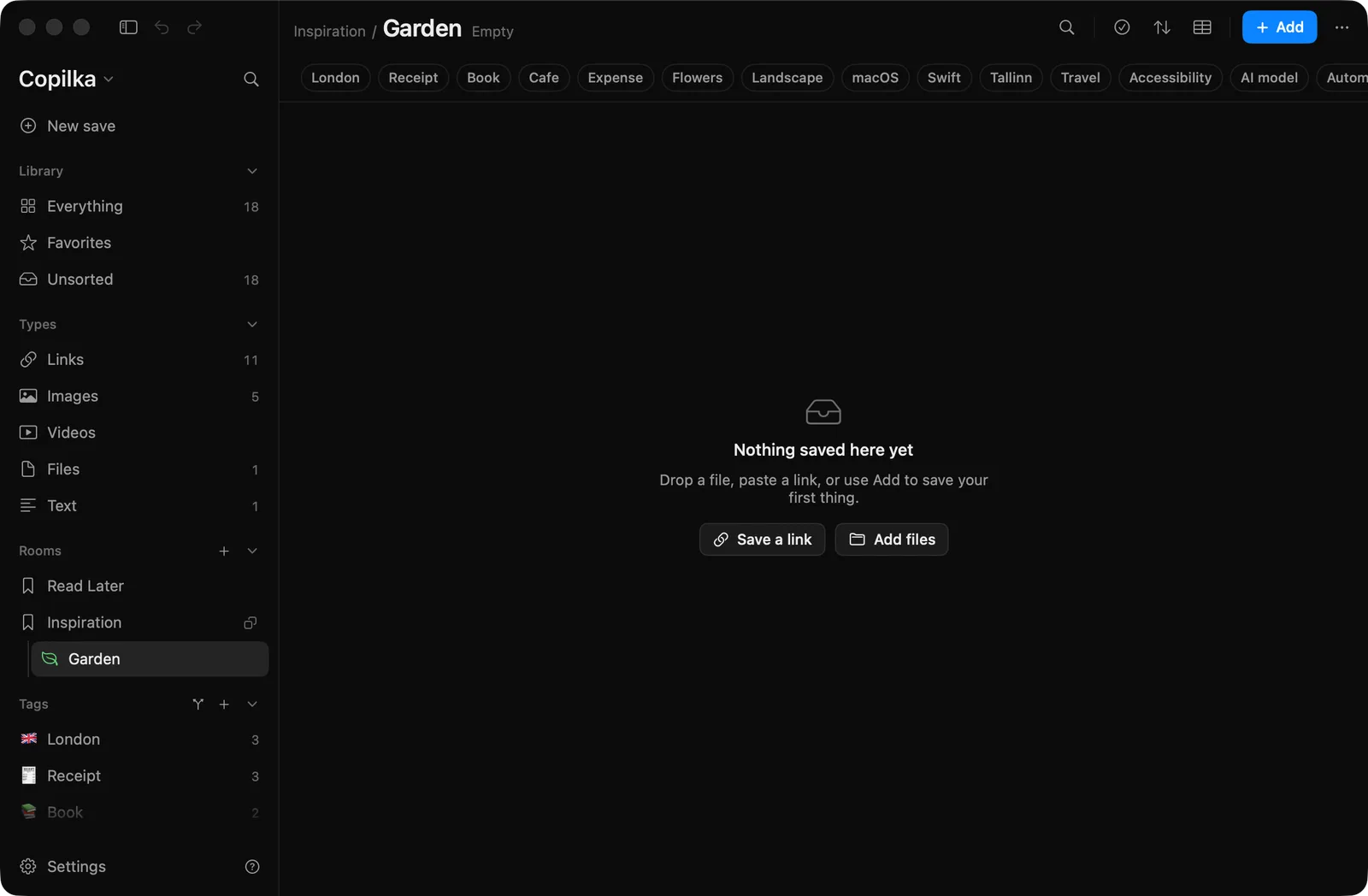
Making a room
Section titled “Making a room”Press ⌥⌘N, click the + beside Rooms in the sidebar, choose New Room… in the File menu, or right-click a room and choose New Sub-room…. The sheet is titled New Room, or New Room in Travel for a sub-room.
- A name, up to sixty characters. A room with the same name as a sibling is not created twice: you get the existing one.
- An icon: one of forty-two symbols, or Choose one for me, which asks the reader to pick from the name.
- A colour: none, or Graphite, Blue, Purple, Pink, Red, Orange, Yellow, Green or Teal. A room without a colour takes the colour of the nearest coloured room above it.
Create makes the room and opens it. A new library starts with two: Inspiration and Read Later.
Nesting
Section titled “Nesting”Rooms nest as deep as you like. To put a room inside another, create it with New Sub-room…, or move it with Move to…, whose sheet, Move Room, says Where Travel sits. Everything inside it moves with it. and offers every room plus Top level. Move to Top Level takes a nested room out. A room cannot be moved into itself or into one of its own rooms.
Dragging rooms in the sidebar reorders them among their neighbours; it never nests.
Inside a room, its sub-rooms appear above the cards as folder tiles, with the name and 4 items · 2 rooms or Empty. Click one to open it. A sub-room’s items are not shown in its parent; the parent’s count in the sidebar counts only what is directly in it.
Putting things in rooms
Section titled “Putting things in rooms”- Save while the room is open, and the save lands there.
- Right-click a card and choose the room under Move to room.
- In the details panel, the Room field in edit mode, or right-click the room capsule at the bottom of the panel.
- Select several cards and use Move to… in the selection bar.
Cards cannot be dropped onto rooms in the sidebar.
The default room is where saves go when you are not in a room. Set it with Make Default for New Saves on a room’s menu, or in Settings → General → Default room. Until you do, it is Unsorted.
Renaming, colouring, pinning
Section titled “Renaming, colouring, pinning”Right-click a room for Rename…, which opens the same sheet with Rename; the icon and colour can be changed there too. Pin puts a shortcut to the room at the top of the Rooms block, marked with a pin; Unpin takes it away.
The same menu has the arranging moves, Move to Top, Move Up, Move Down and Move to Bottom, for ordering rooms among their neighbours.
Deleting a room
Section titled “Deleting a room”Delete Room on the menu, or Delete on Settings → Rooms. There is no confirmation. The room and every room inside it go; every item in them moves to Unsorted, nothing is lost. The toast says Deleted Travel with Its items moved to Unsorted. or It held 2 sub-rooms; all their items moved to Unsorted. ⌘Z undoes it.
What a room carries
Section titled “What a room carries”Two things belong to a room beyond its items:
- Properties: facts that every item in the room has, such as a stage, a price or a rating, with presets for Jobs, Reading, Shopping, Trips and Recipes, and the reader filling them in. See Properties.
- Reading settings: whether to use a browser for the room’s pages, and the sites to read as you. See Read as you.
Both are on Settings → Rooms, which lists every room with Sub-room, Rename and Delete, its properties, and its reading row. See Settings.
On the iPhone
Section titled “On the iPhone”Rooms are on the Home screen, with their counts, and open into a board. Long-pressing one gives the same menu. See Copilka on iPhone.